


Hyundai Digital Key vs. Bluelink: What Can Your Phone Actually Do?
Hyundai Digital Key lets a compatible phone unlock and start a properly equipped vehicle. Bluelink gives you connected remote functions through the MyHyundai app, such as locking the doors or preparing the cabin temperature before you get in.
Both can make everyday ownership more convenient, but remote access through an app does not automatically mean your phone can replace the key fob. Understanding the difference helps you choose the equipment you want and get more from your Hyundai.
How Hyundai Digital Key 2 Works
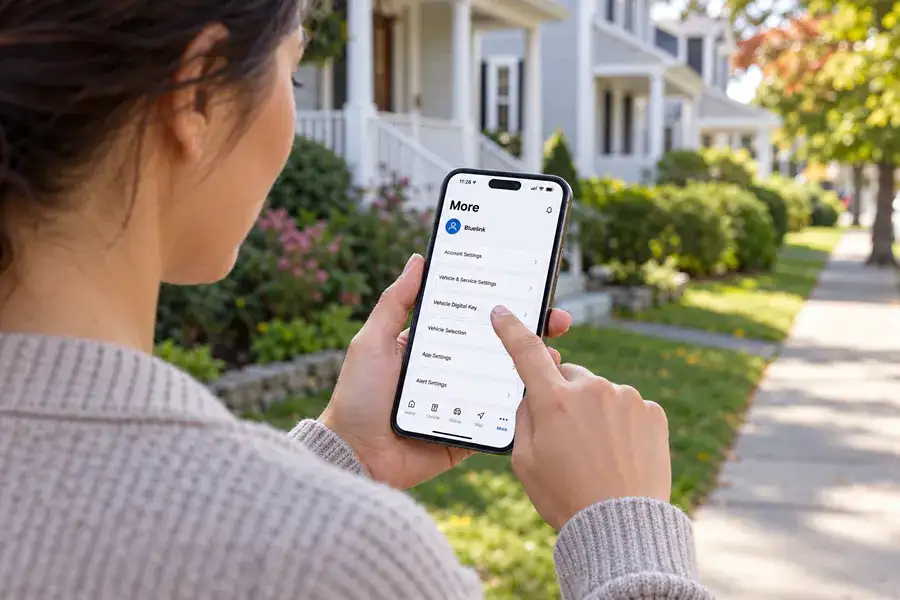
Digital Key turns a registered, compatible device into a vehicle key. The details below focus on Digital Key 2; earlier Digital Key systems have different device and setup requirements.¹
With Digital Key 2 Touch, you hold your compatible device against the door-handle authentication area to lock or unlock the doors. Inside, place the device on the vehicle’s authentication pad, then press the brake and Start/Stop button according to the vehicle’s instructions.²
That can be useful after a stop at Morrill Memorial Library: your registered phone provides another way to enter and start your Hyundai without reaching for the fob.
Digital Key 2 Premium adds proximity functions when both the Hyundai and the device support Ultra Wideband, or UWB. Depending on the vehicle, you may still need to touch the door-handle sensor, but you can use supported entry and starting functions without holding the phone against the handle or placing it on the authentication pad. Some compatible systems also provide nearby remote commands through the device’s app.²
For errands around Norwood Center, the benefit is convenient access. The exact interaction still depends on your vehicle, phone, and settings.
What Bluelink Can Do Remotely
Bluelink and Bluelink+ connect you to supported vehicle functions through the MyHyundai app. Available functions depend on your Hyundai’s equipment and active service plan.³
If you leave your Hyundai near Norwood Depot and later wonder whether you locked it, a remote-lock command gives you a way to address that without returning to the vehicle, subject to connectivity and operating requirements.
Other functions can help with different parts of your routine. Before leaving for an activity at Father Mac’s, supported remote climate controls let you prepare the cabin while the vehicle is parked. After a walk at Bird Park in Walpole, the vehicle-location function can help you find where you parked. Compatible Hyundai EVs also offer charging-schedule functions.³
| What you want to do | Feature to check |
| Use your phone for vehicle entry and starting | Hyundai Digital Key |
| Send a lock or unlock command while away from the vehicle | Bluelink remote access |
| Prepare the cabin temperature before getting in | Supported Bluelink climate functions |
| Give another driver phone-based vehicle access | Digital Key sharing |
| Manage a compatible Hyundai EV’s charging schedule | Supported Bluelink charging functions |
Can You Use Bluelink to Drive Without Your Key?
Do not treat a Bluelink remote-unlock or remote-start command as a replacement for your driving key. Have your key fob or a registered, working Digital Key available before driving. Digital Key provides vehicle authorization; Bluelink remote commands provide connected access to specific functions.² ³
Sharing Digital Key With Another Driver
Digital Key sharing can help when more than one person uses the same Hyundai. If another household member is handling pickup after practice at Murphy Field, a shared digital key can give them vehicle access through their own compatible device.
Supported sharing controls let the primary user manage access and revoke a shared key. Each recipient’s device must meet the relevant compatibility requirements. Digital Key sharing also requires an active Bluelink Advanced subscription, complimentary for eligible original owners.¹ ³
Bluelink enrollment is part of Hyundai’s Digital Key 2 setup process. Getting the account and phone registration completed first makes it easier to understand which functions are ready to use.¹
Will Digital Key Work With Your Phone?
Check the vehicle, device, and account together before relying on phone-based access.
- Vehicle: Confirm the model year, trim, and installed Digital Key version. Bluelink capability alone does not establish Digital Key compatibility.
- Device: Check your exact phone model, required software, and supported wallet. Digital Key 2 supports select Apple, Samsung, and Google devices; brand alone does not guarantee compatibility or proximity functionality.
- Account: Confirm enrollment and the service plan attached to your Hyundai. Bluelink+ connected services are available at no additional subscription cost for eligible original owners of equipped vehicles. Older vehicles, subsequent owners, and separate connected services can have different terms.¹ ³
If two people will share school pickups at Callahan Elementary, check both phones during setup rather than assuming they will work identically.
Bluelink remote services depend on wireless coverage and other operating conditions. Complete setup and test the functions while parked, keeping the key fob available as a backup while you learn the system.⁴
Compare Hyundai Technology With Your Phone in Hand
Bring your phone and your feature wish list to Nucar Hyundai of Norwood. We can help you check a specific vehicle’s equipment and understand phone-based entry, remote commands, and shared access.
Explore our new Hyundai inventory to compare options. The Nucar Network broadens your vehicle search, and Nucar Cares supports the communities we serve. Finding the right Hyundai—and understanding the features you’ll use—is another reason Everyone Loves a Nucar!
0 comment(s) so far on Hyundai Digital Key vs. Bluelink: What Can Your Phone Actually Do?